How to run Python scripts in Scrapy Cloud
You can deploy, run, and maintain control over your Scrapy spiders in Scrapy Cloud, our production environment. Keeping control means you need to be able to know what’s going on with your spiders and to find out early if they are in trouble.
 No one wants to lose control of a swarm of spiders. No one.
This is one of the reasons why being able to run any Python script in Scrapy Cloud is a nice feature. You can customize to your heart’s content and automate any crawling-related tasks that you may need (like monitoring your spiders’ execution). Plus, there’s no need to scatter your workflow since you can run any Python code in the same place that you run your spiders and store your data.
While just the tip of the iceberg, I’ll demonstrate how to use custom Python scripts to notify you about jobs with errors. If this tutorial sparks some creative applications, let me know in the comments below.
Setting up the Project
We’ll start off with a regular Scrapy project that includes a Python script for building a summary of jobs with errors that have finished in the last 24 hours. The results will be emailed to you using AWS Simple Email Service.
You can check out the sample project code here.
Note: To use this script you will have to modify the settings at the beginning with your own AWS keys so that the email function works.
In addition to the traditional Scrapy project structure, it also contains a check_jobs.py script in the bin folder. This is the script responsible for building and sending the report.
Plain text
Copy to clipboard
Open code in new window
EnlighterJS 3 Syntax Highlighter
.
├── bin
│ └── check_jobs.py
├── sc_scripts_demo
│ ├── __init__.py
│ ├── settings.py
│ └── spiders
│ ├── __init__.py
│ ├── bad_spider.py
│ └── good_spider.py
├── scrapy.cfg
└── setup.py
. ├── bin │ └── check_jobs.py ├── sc_scripts_demo │ ├── __init__.py │ ├── settings.py │ └── spiders │ ├── __init__.py │ ├── bad_spider.py │ └── good_spider.py ├── scrapy.cfg └── setup.py
1.
2├── bin
3│   └── check\_jobs.py
4├── sc\_scripts\_demo
5│   ├── \_\_init\_\_.py
6│   ├── settings.py
7│   └── spiders
8│       ├── \_\_init\_\_.py
9│       ├── bad\_spider.py
10│       └── good\_spider.py
11├── scrapy.cfg
12└── setup.pyThe deploy will be done via shub, just like your regular projects.
But first, you have to make sure that your project's setup.py file lists the script that you’ll want to run (see the line highlighted in the snippet below):
Plain text
Copy to clipboard
Open code in new window
EnlighterJS 3 Syntax Highlighter
from setuptools import setup, find_packages
setup(
name = 'project',
version = '1.0',
packages = find_packages(),
scripts = ['bin/check_jobs.py'],
entry_points = {'scrapy': ['settings = sc_scripts_demo.settings']},
)
from setuptools import setup, find_packages setup( name = 'project', version = '1.0', packages = find_packages(), scripts = ['bin/check_jobs.py'], entry_points = {'scrapy': ['settings = sc_scripts_demo.settings']}, )
1from setuptools import setup, find\_packages
2
3setup(
4    name         = 'project',
5    version      = '1.0',
6    packages     = find\_packages(),
7    scripts      = \['bin/check\_jobs.py'\],
8    entry\_points = {'scrapy': \['settings = sc\_scripts\_demo.settings'\]},
9)Note: If there's no
setup.pyfile in your project root yet, you can runshub deployand the deploy process will generate it for you.
Once you have included the scripts parameter in the setup.py file, you can deploy your spider to Scrapy Cloud with this command:
1$ shub deployRunning the Script on Scrapy Cloud
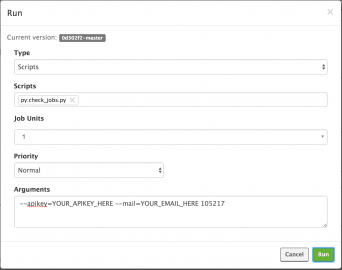
Running a Python script is very much like running a Scrapy spider in Scrapy Cloud. All you need to do is set the job type as "Scripts" and then select the script you want to execute.
The check_jobs.py script expects three arguments: your Scrapinghub API key, an email address to send the report to, and the project ID (the numeric value in the project URL):
Scheduling Periodic Execution on Scrapy Cloud
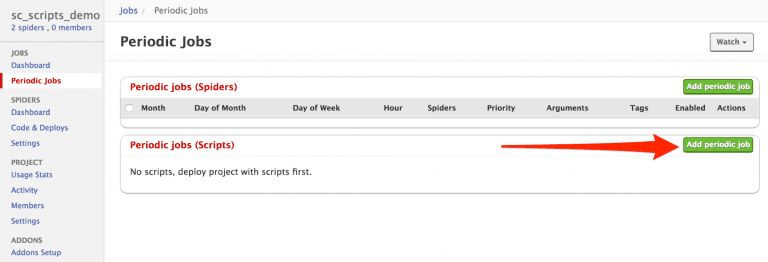
Since this script is meant to be executed once a day, you need to schedule it under Periodic Jobs, as shown below:
Select the script to run, configure when you want it to run and specify any arguments that may be necessary.
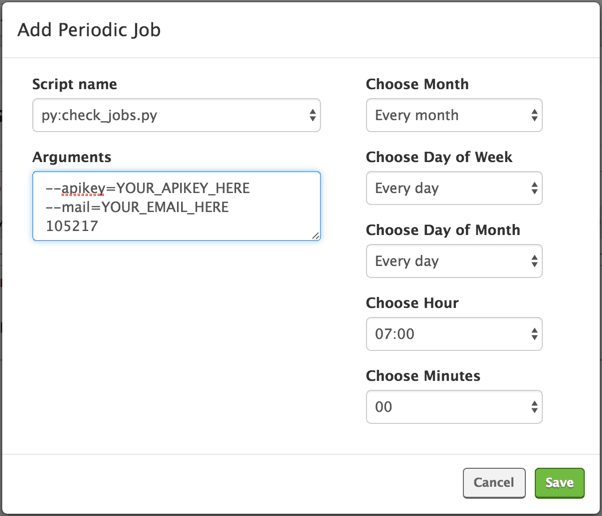
After scheduling the periodic job (I’ve set it up to run once a day at 7 AM UTC), you will see a screen like this:
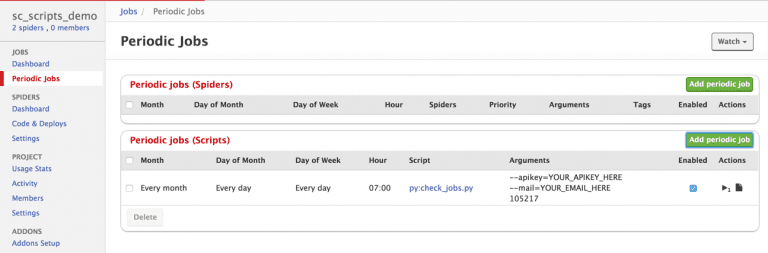
Note: You can run the script immediately by clicking the play button as well.
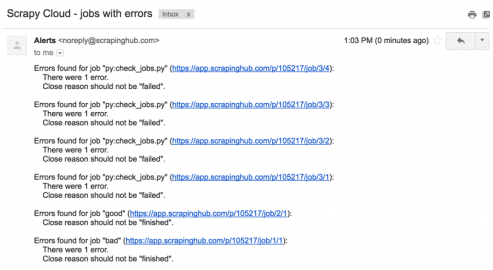
And you’re done! The script will run every day at 7 AM UTC and send a report of jobs with errors (if any) right into your email inbox. This is how the report email looks:
Helpful Tips
Heads up, here’s what else you should know about Python scripts in Scrapy Cloud:
- The output of print statements show up in the log with level INFO and prefixed with
[stdout]. It’s generally better to use a Python standard logging API to log messages with proper levels (e.g. to report errors or warnings). - After about an hour of inactivity, jobs are killed. If you plan to leave a script running for hours, make sure that it logs something in the output every few minutes to avoid this grisly fate.
Wrap Up
While this specific example demonstrated how to automate the reporting of jobs with errors, keep in mind that you can use any Python script with Scrapy Cloud. This is helpful for customizing your crawls, monitoring jobs, and also handling post-processing tasks.
Read more about this and other features at Scrapy Cloud online documentation.
Scrapy Cloud is forever free, so no need to worry about a bait-and-switch. Try it out and let me know what Python scripts you’re using in the comments below.